
Accounts
Every account in MyBudget is described by three independent properties:
Planning — whether the account tracks a category of spending or income, rather than mirroring a real-world balance.
Sign — which way round the balance is read. For a Debit account a higher balance is good news: money you have or will receive. For a Credit account a higher balance is bad news: money you owe or will spend. See Debit vs Credit (the sign) below.
Frozen — whether the money is locked in place (a mortgage, an investment, a term deposit), so that it does not count towards your available cash.
Every combination of the three is one of the eight account types you pick from when adding an account:
Type |
Sign |
Planning |
Frozen |
Typical use |
|
|---|---|---|---|---|---|
|
Asset |
+ |
no |
no |
Chequing, savings |
|
Credit |
− |
no |
no |
Credit card |
|
Income |
+ |
yes |
no |
Salary, dividends paid out as cash |
|
Expense |
− |
yes |
no |
Groceries, rent, fuel |
|
Investment |
+ |
no |
yes |
Term deposit, share portfolio |
|
Liability |
− |
no |
yes |
Mortgage, long-term loan |
|
Frozen Inflow |
+ |
yes |
yes |
Principal going into an investment; mortgage repayments |
|
Frozen Outflow |
− |
yes |
yes |
Term deposit maturing; drawdown on a mortgage or credit line |


In a typical budget every account shows a zero or positive balance. Transaction accounts hold money or a debt, and planning accounts run slightly ahead of reality: a plan’s instalment falls due first, and the real transaction that settles it follows. A negative balance therefore means something unusual has happened: an overdrawn chequing account, an overpaid credit card, or — most often — a planning account where reality has overtaken the plan, by spending more than budgeted or receiving more income than planned.
Frozen vs Liquid
A Liquid account contains money you can spend right now: chequing, savings, your everyday credit card. A Frozen account contains money that is committed to a particular role and cannot easily be moved: the principal of a term deposit, the outstanding mortgage, an investment portfolio.
The distinction matters for forecasting: Forecasts treat frozen accounts as if they were not part of your available cash. The cash-on-hand projections sum only over Liquid accounts.
Transaction accounts
Transaction accounts (Planning = no) represent something you can point at in the real world: a bank account, a credit card, a debt, a term deposit. Their balance in MyBudget is the sum of all splits (see Transactions) posted against them. It must match the real-world balance. When it doesn’t, either you are missing a transaction (perhaps something the bank hasn’t sent you yet, or a cash purchase) or there is a balancing error.
Normally, transactions are created by importing them via CSV files downloaded from the real-world account’s provider. This associates each transaction with the corresponding transaction account. After import, the transactions must be balanced which will associate them with one or more planning accounts.
Planning accounts
Planning accounts (Planning = yes) do not represent any real-world buckets. Their balance is the running difference between what you planned (the sum of plan instalments that have come due) and what really happened (the sum of actual transactions). For accounts driven by a perfectly predictable plan — rent, a subscription, a fixed loan repayment — the balance should sit at zero; any deviation is an alert.
For accounts where the plan is only an estimate — groceries, fuel, entertainment — the balance will wander. A small wander either side of zero is normal. A balance that drifts steadily away from zero (whether positive or negative) is the signal that the plan no longer matches your actual behaviour and is due for an update. See Updating a plan.
The liquid planning account types — Income and Expense — are used to track plans that involve your available cash.
The frozen planning account types — Frozen Inflow and Frozen Outflow — are used to track plans that involve money that is tied to particular roles and is not immediately available.
For instance, a plan against a “groceries” expense account will reduce your available cash forecast while a plan against a “mortgage interest” outflow account will not. Banks usually compound mortgage interest back into the mortgage account which does not immediately affect the cash you have available.
Mortgage repayments can be planned using transfer plans (see Normal vs Transfer plans and Transfers between accounts) between a liquid and a frozen planning account. This reflects that the money is transferred within your budget (rather than just being spent) but also reflects that the mortgage payments affect your available cash since they will be taken into account on the liquid account side of the plan, but not on the frozen side.
Typical uses for Frozen Outflow accounts are plans for events like a term deposit maturing, a mortgage drawdown, or an investment being realised.
Typical uses for Frozen Inflow accounts are plans for events like investment principal being deposited, the frozen side of regular mortgage repayments reducing the outstanding balance, or dividends being re-invested.
In all cases planning account balances accumulate the difference between what you planned and what actually transacted.
Transfers between accounts
Most transactions involve one transaction account and one planning account. Transfers — moving money between two of your own transaction accounts — are sometimes the exception. There are three distinct cases.
An unplanned transfer that has already settled in both accounts
When the transfer has cleared on both sides and both banks have included it in their CSV exports, record it as a single transaction with two splits, both on transaction accounts and no planning account involved. Import one side first and balance the row against the other transaction account; when you import the second side, the matching row will appear as a duplicate and you can discard it.

A transfer between two transaction accounts: a single transaction with two transaction-account splits and no planning split.
An unplanned transfer in flight
Most real-world transfers do not settle instantly. The money leaves the sending account immediately but arrives in the receiving account only later. To represent this, balance the outgoing transaction against a Money in Transit planning account; when the incoming transaction shows up, balance it against the same planning account. The planning account’s balance is non-zero only while the money is in transit, and returns to zero once both sides are recorded.
Using an Income planning account (liquid) will cause the cash-on-hand calculations to include the money-in-transit. Use this if the money is being transferred to a liquid transaction account and you expect the transit to be quick enough so as to not affect your spending, e.g. paying off the credit card.
Using an Inflow planning account (frozen), on the other hand, will cause the cash-on-hand calculations to ignore the money while it is in transit. Your cash-on-hand will reduce when the money leaves the source account (assuming it is liquid) and will only increase again once the money reaches the destination account and only if that is also liquid. Use this if the money is being transferred to a frozen transaction account or you expect the transfer to take a significant amount of time and you want to mark the money as not available during this time.

A two-step transfer using a Money in Transit planning account to track the in-flight balance.
A recurring planned transfer
Plans always target planning accounts (see Plans). To plan a recurring transfer between transaction accounts — fixed mortgage repayments, automatic savings — use a transfer plan with two planning accounts: one Debit and one Credit. Each instalment increments both planning account balances; each real-world transaction (one for each side of the transfer) is then balanced against its respective planning account, bringing both back to zero.

A recurring transfer modelled as a transfer plan between two planning accounts. Each side of the real transfer balances back against its planning account.
Debit vs Credit (the sign)
The sign is just an answer to the question “if this number goes up, am I better off or worse off?”
In a Debit account (sign +1) a higher balance is good news. Chequing, savings, salary received, term deposit — more is better.
In a Credit account (sign −1) a higher balance is bad news. Credit card debt, mortgage outstanding, monthly grocery spend — more is worse.
Picking the right sign is mostly intuitive once you imagine the bucket filling up. Money you might one day pull out (cash, savings, investments, income) is Debit. Money you might one day have to put in (debt, expenses) is Credit.
The sign also changes how amounts are displayed in different contexts. For instance, given a transaction reflecting a grocery purchase paid for using a chequing-account debit card:
When editing the transaction, the split for the chequing account will be negative while the split for the groceries planning account will be positive, indicating that money flowed out of chequing into groceries. Both splits sum to zero.
When viewing the transaction in the Transactions tab for the chequing account (a Debit account), the amount is shown as negative — the transaction reduced the account’s balance.
When viewing the transaction from the Groceries account (a Credit account), it is also shown as negative because it also reduced that account’s balance.
In summary: when focused on a transaction, splits with negative amounts show where money came from and splits with positive amounts show where the money went. When focused on an account, transactions with positive amounts increase the balance and negative amounts decrease it.
The Accounts tab
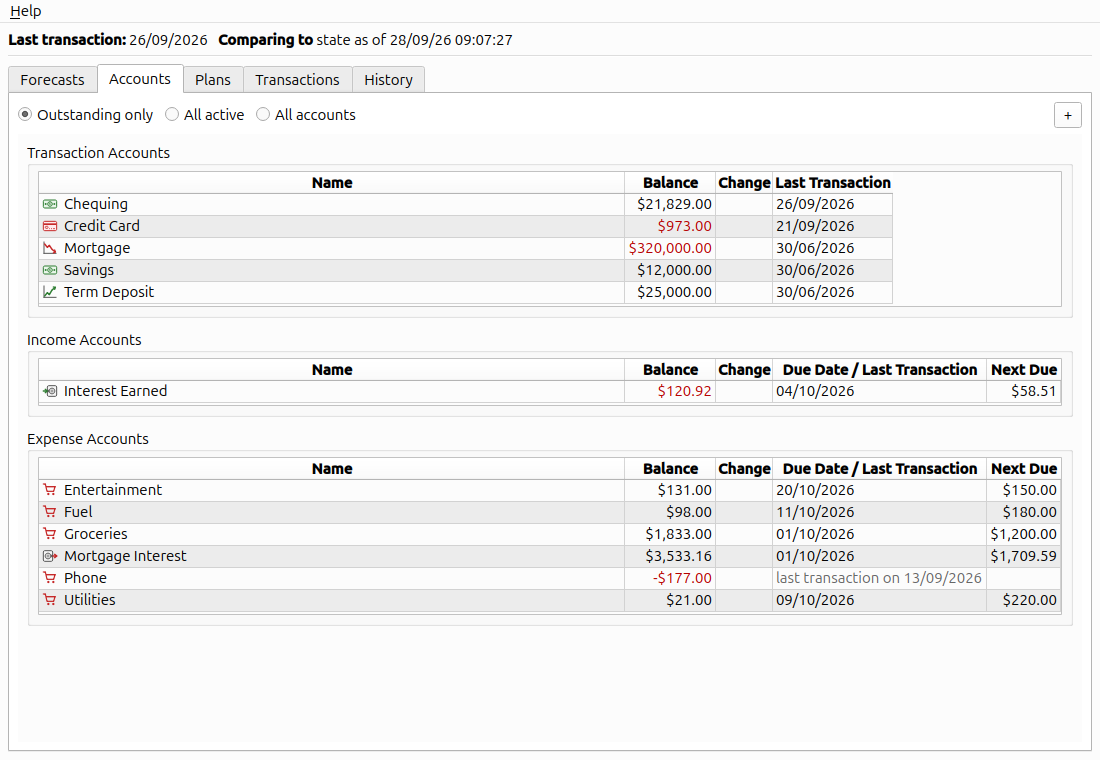
The Accounts tab with the Outstanding only filter selected.
The tab arranges all accounts into three groups, each in its own table:
Transaction Accounts — every account where Planning = no.
Income Accounts — every Planning + Debit (sign +1) account.
Expense Accounts — every Planning + Credit (sign −1) account.
Each row shows the account’s current Balance, the Change since the history baseline (see History), and timing information: the Next Due instalment from any plan attached to this account, the date that instalment is due, or — if the account has no active plans — the date of the most recent transaction.
Expected range
Not every account is only settled when it reads zero. A Safety expense account may normally sit at $5,000 and only matter when it moves away from that. A credit card carries a balance all month, and only needs attention when that balance gets close to the credit limit.
Each account therefore has an expected range: an Expected minimum and an Expected maximum, set in the account dialog (Edit account, or when adding the account). Both are measured on the balance as shown on this tab, after the sign has been applied, so a credit card’s balance owing counts upwards. Both ends of the range count as inside it. The range decides two things:
Colour. A balance past the end of its range where you are worse off is shown in red. Red is not the same as negative. A negative balance is unusual, but not always bad news: an Income account that received more than planned is negative, yet you are better off. And a positive balance can be bad news: income that has not arrived yet shows as a positive Income balance. Which end of the range is the worse-off one depends on the sign, and flips between transaction and planning accounts:
Account
Red when
Because
Debit transaction (Asset, Investment)
below the minimum
you have less money than expected
Credit transaction (Credit, Liability)
above the maximum
you owe more than expected
Debit planning (Income, Frozen Inflow)
above the maximum
income you planned has not arrived
Credit planning (Expense, Frozen Outflow)
below the minimum
you have spent more than planned
A balance past the other end is still outside the range, but you are better off, so it is not red.
Visibility of planning accounts. A planning account whose balance is inside its range is where the plan says it should be, so Outstanding only hides it (see the filters below). A transaction account is shown whenever it holds money, whatever its range: any money in it is part of your current state.
Some examples:
Safety, an expense account normally showing $5,000 → minimum and maximum both $5,000. The row stays out of the way while the account sits at its level. It appears in red as soon as the account is drawn on, and in black if it is overfunded.
Groceries, where spending wanders up to $200 either side of the plan → minimum −$200, maximum $200. The row only appears once you are more than $200 over or under budget, in red if over.
Credit Card, a Credit account with a $2,000 limit → minimum $0, maximum $1,800. The row shows whenever something is owed, and turns red once you are within $200 of the limit, which is the time to move money onto the card. Nothing in the forecasts depends on this: paying off the card moves money between two of your own accounts, so it changes nothing in the budget.
Mortgage, a Liability borrowed at $400,000 → minimum $0, maximum $400,000. Without a range, the amount owing would always be red.
The range defaults to 0.00–0.00, where every non-zero balance is outside it: a planning account
is outstanding as soon as it drifts from zero, and red whenever it drifts the wrong way. The
minimum may be negative, for an account where a small negative balance is normal, but it cannot be
above the maximum. Hovering over an asterisk-marked balance shows the range that applies to it —
the small asterisk in the top-left corner of a cell means there is a tooltip to read, anywhere in
the application, not just here.
The range is display-only: it affects nothing but the colour of the balance and which rows the filters below show. It takes no part in the forecasts, the cash-flow projection, the cash-on-hand simulation or any total.
Filter
The radio buttons at the top of the tab control which accounts are visible, from the narrowest selection to the widest:
Outstanding only — the current state at a glance: every transaction account holding money, and every planning account whose balance is outside its expected range, now or at the history baseline.
All active — every account that is still in use: one with a non-zero balance (now or at the history baseline) or an active plan, including planning accounts sitting inside their range.
All accounts — everything, including dormant accounts you may have used in the past but that now have a zero balance and no active plans against them.
Each filter shows everything the one above it shows, and more.
A zero balance alone does not make an account dormant: if its expected range excludes zero (say a minimum of $50), a zero balance is outside its range, so it counts as outstanding and appears under every filter. An account is dormant, shown only under All accounts, when its balance is zero, zero lies within its range, and it has no active plans.
Adding accounts
The + button on the right of the filter bar (or the Insert key) opens a small dialog asking
for the new account’s name, type and expected range. Pick the type that
matches your three properties from the table above; you can change the account type later, subject
to a couple of safety rules — see the on-screen errors. Leave the range at 0.00–0.00
unless the account has a normal level that is not zero, or small drifts are not worth showing (see
Expected range).
Updating a plan
Update plan corrects a plan’s amount from the account’s balance. A dialog lists the possible updates, each showing the plan’s new amount and the balance it would leave. The one that suits the account best is marked recommended. An update that cannot be applied yet says why.
Each update can be applied in one of two ways, with a button for each:
Update — correct the plan in place. Use this when the plan was simply wrong, such as a first guess at what a new expense would cost: the plan is rewritten as if it had always had the right amount.
Update and split — correct the plan, then split it at its latest instalment. Use this when the cost itself has changed, such as a price rise: the older instalments stay in the original plan, and the next update leaves them alone.
With only one instalment done the two would come to the same thing, so only Update is offered.
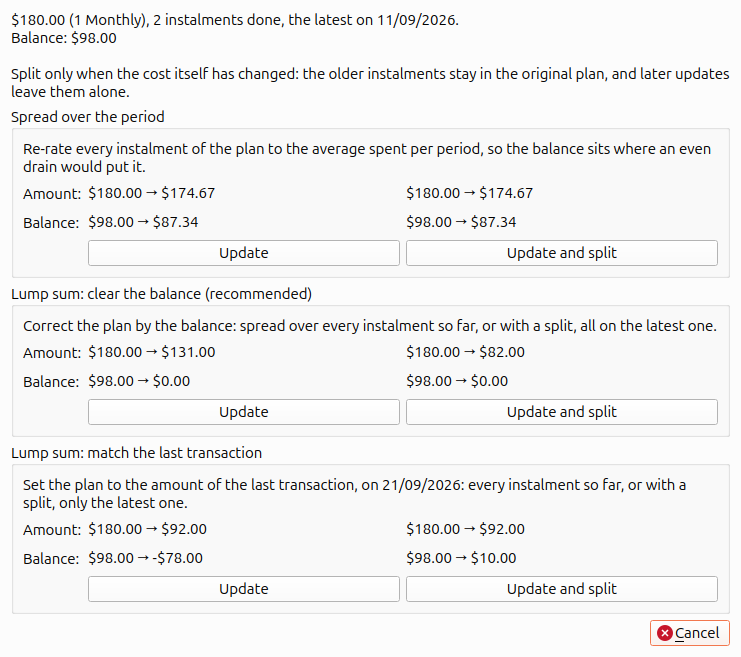
Update plan on Fuel, offering all three updates. One fill-up a month suggests lump sums, so clearing the balance is recommended.
Spread over the period — for money spent a bit at a time, like groceries. Each instalment pays for the period that follows it, so if the money went out evenly the balance would run from the plan’s amount on the due date down to zero just before the next. This update sets every instalment of the plan to the average actually spent per period, which puts the balance exactly where that even run would have it today. It needs a whole period since the plan started. Splitting makes no difference to the figures here; it only marks where the next update starts.
Lump sum: clear the balance — for a plan matched by one transaction each time, like a salary or a bill, bringing the balance to zero. Update spreads the correction evenly over every instalment so far; Update and split puts all of it on the latest instalment, leaving the older ones as they were. It waits until the transaction for that instalment has come in. One dated nearer the next due date than the latest one — a paycheck arriving a day early — counts towards the next instalment, so the update waits until that has fallen due.
Lump sum: match the last transaction — as above, but sets the plan to the last transaction’s amount: every instalment so far with Update, only the latest with Update and split. Only listed when that differs from clearing the balance, e.g. when an older difference is still in the balance.
The recommendation comes from how many transactions the account has had over the plan’s recent periods: about one per period suggests lump sums. The update is recorded as a single entry on the History tab, so it can be undone.