
Plans
Plans indicate expectations for single or repeating future events affecting your finances. Normally plans should have a positive instalment amount and will increase the balance of their target account. Whether this represents a planned income or a planned expenditure is determined by the sign of the target account.
Plans are how MyBudget knows what to expect: they drive the forecast, they define the Next Due dates shown on the Accounts tab, and they decide whether your planning accounts are on track or drifting — and when one drifts, Update plan re-rates its plan from the account’s balance (see Updating a plan).
You always create plans by hand — the application never invents one for you.
Plans come in two forms: Normal plans and Transfer plans.
Normal vs Transfer plans
Normal plans indicate events where money is either received or spent. They have a target account but no source account and simply change the balance of the target account by the instalment amount every time they come due.
Transfer plans indicate events where money moves around within your finances. They have both target and source accounts. On each instalment, they affect the target account the same way a normal plan does and the source account in the opposite way. Note that target and source account need not be of the same type! Thus a transfer plan with a debit target account and a credit source account will in fact increase both account’s balances since they have opposite signs.
Frequency: Once, Weekly, Monthly
A plan is of one of three frequency kinds:
Once — a single instalment on a specific date. Use this for a known upcoming expense like a concert ticket, a tax bill, or a one-off transfer.
Weekly — repeats every N weeks (1 = every week, 2 = fortnightly, 4 = every four weeks).
Monthly — repeats every N calendar months on the same day-of-month as the start date (1 = monthly, 3 = quarterly, 12 = yearly).
Repeating plans can run forever (the Unlimited checkbox) or stop after a given number of instalments (the Max instances counter). The Last date and Total amount fields update to reflect this — and each can be set directly instead, which works out the counter or the amount from the figure or the date you gave.
Amount type: Fixed vs Per Annum
A plan’s amount is of one of two kinds:
Fixed — every instalment is the same dollar amount. Rent, a subscription, a fixed savings transfer, a regular pay-cheque.
Per Annum — the instalment is computed as an annual percentage rate applied to the daily balance of a base account since the previous instalment, optionally less a tax rate. Use this for interest: the interest charged on a mortgage (base account = the mortgage; tax rate = 0 %) or earned on a term deposit (base account = the deposit; tax rate = your marginal rate, applied to the gross interest). The base account must be a transaction (non-planning) account.
A Once plan is always Fixed — a single instalment of a percentage of something does not really make sense.
The Plans tab
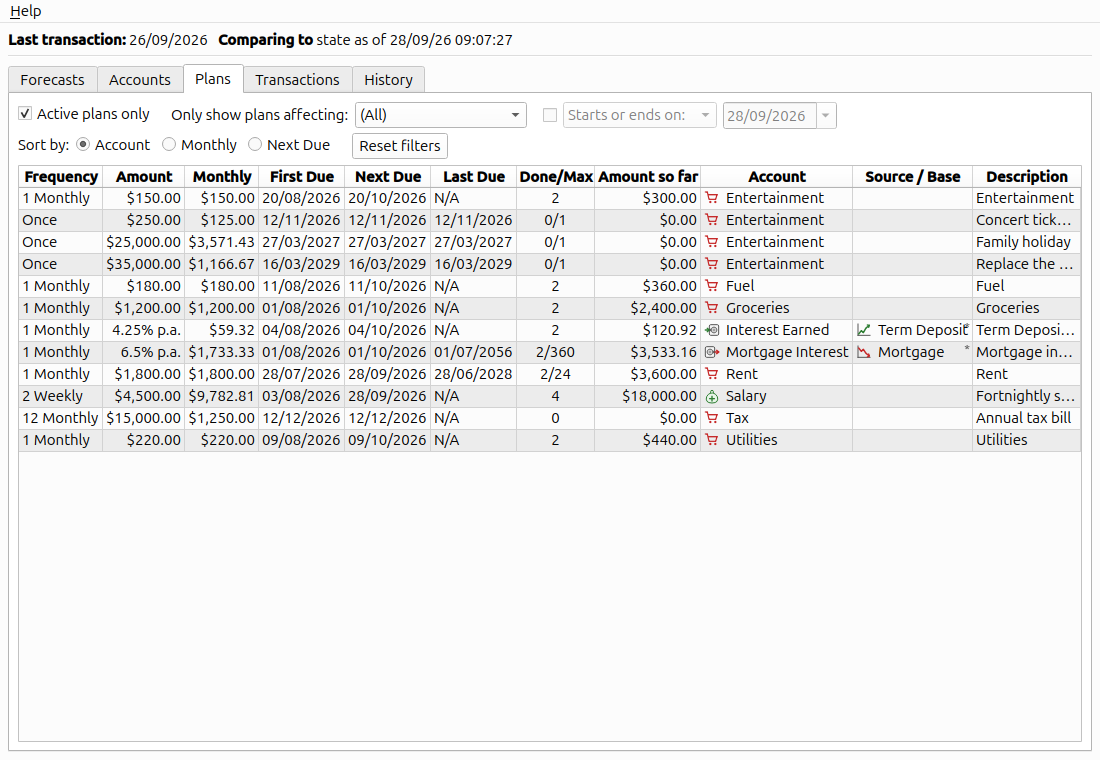
Every plan in the budget, sorted by account name.
Each row in the table is one plan. The columns:
Frequency — Once, N Weekly, or N Monthly.
Amount — the per-instalment amount for Fixed plans, or the annual rate (e.g. 6.5 % p.a.) for Per-Annum plans.
Monthly — the amount converted to a monthly equivalent so plans of different frequencies are comparable at a glance. For a Once plan there is no recurrence to convert, so the amount is spread evenly over the months left until it falls due — counting both the current month and the month it is due in. A one-off of $1,200 due in six months’ time therefore shows $171.43 a month (seven months), which is what you would have to put aside each month to have the money ready in time. Once the due date is inside the current month the whole amount shows.
First Due / Next Due / Last Due — the start date, the next upcoming instalment, and (for limited plans) the last instalment.
Done / Max — instalments completed, and the cap if any.
Amount so far — the cumulative amount of every instalment that has come due to date. For a Per-Annum plan each instalment is valued against the base account’s balance over that instalment’s own period, so a balance that moved over time is accounted for as it actually was at the time.
Account — the target planning account.
Source / Base — the source account for a transfer plan, or, for a Per Annum plan, the account whose balance the rate is applied to. A plan never has both, so one column shows whichever applies; the % p.a. in the Amount column tells you which one you are looking at.
Description — a free-text label.
Filtering
The filter bar above the table narrows down what is shown:
Active plans only — hide plans whose last instalment is already in the past.
Only show plans affecting — pick a single account; only plans that affect this account (i.e. have it as their target, source, or per-annum base account) will appear. Because of the base account, transaction accounts can appear in this list too, even though a plan can never target one.
Date — pick a date, and one of two ways for a plan to touch it:
Starts or ends on — show only plans whose cash-flow contribution starts or ends on the given date, so you can see at a glance why the cash-flow changes then. Note that a plan’s contribution starts one whole period before its first instalment — that period is when the money starts accruing — so a monthly plan first due on the 15th of September starts contributing on the 15th of August. It stops contributing on its last instalment. Plans that don’t move the cash-flow figure at all (one-off plans, and transfers between two accounts that are both frozen or both liquid) never match this mode.
Instalment due on — show only plans that actually fall due on the given date, plus income plans that fell due the day before: the forecast counts a day’s income only from the next day on (it assumes every outgoing is paid before any income arrives), so this is what steps the chart’s projected balance on that date. It is the mode the Forecasts chart uses when its menu hands a set of plans over with Show all in Plans tab.
The two modes rarely agree: a monthly plan first due on the 15th of September starts on the 15th of August but is not due until the 15th of September.
Sort by — Account (default), Monthly, or Next Due. Monthly orders by the Monthly column with expenses first (largest expense at the top) and income last, so one-off plans sit wherever their amortised monthly amount puts them.
The Reset filters button (or Ctrl+R) clears all filters in one go.
Editing a plan
Plans change. Therefore MyBudget allows you to freely edit and change your plans. However, this rewrites history: the forecasts and your planning account balances re-compute as if you had always had planned this way.
This is intentional since plans may need to be adjusted retroactively. For instance if you take up swimming, you may create a new expense (planning credit) account to track what you spend on pool-time and set up a plan with a monthly instalment amount that is your best guess. Six months later you realize that the balance in the swimming account is negative and has been steadily dropping. It is clear you like swimming better than you thought you would. In this case the easiest way to bring everything back in line is to right-click the swimming account on the Accounts tab and choose Update plan (see Updating a plan). Its Spread over the period update works out the monthly amount you should have planned for from the plan’s Amount So Far and the account’s balance. Press Update and the plan is rewritten with it, so the swimming account’s balance goes back to where steady spending would have it. There is no need to split the plan here: your first guess was simply wrong, and the corrected amount is right for the past as well as the future. But don’t forget to check your forecasts to make sure you can actually afford to go swimming that often.
If a year later the pool raises its prices, the plan was right until then and only the future has changed. Choose Update plan when the new prices start and press Update and split this time: the plan is split at its latest instalment, so the year at the old prices stays in the original plan, and every later update leaves it alone. A month or two on, once the new prices show in the balance, Update brings the new plan in line with them. (If you know the new price in advance, splitting the plan by hand, described below, does it in one step.)
Update plan handles the common case: an account whose only active plan is Fixed and has no end. For anything else, edit the plan by hand.
Double-clicking a row opens the Edit Plan dialog. The Fixed and Per Annum modes show slightly different fields:
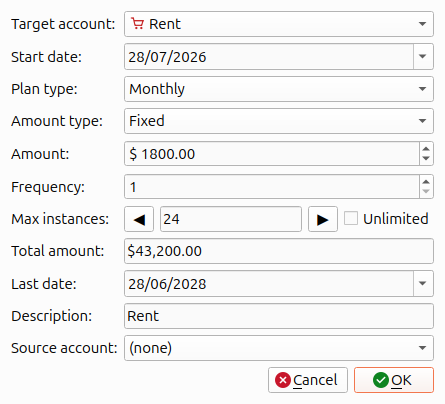
A Fixed plan: rent paid monthly.
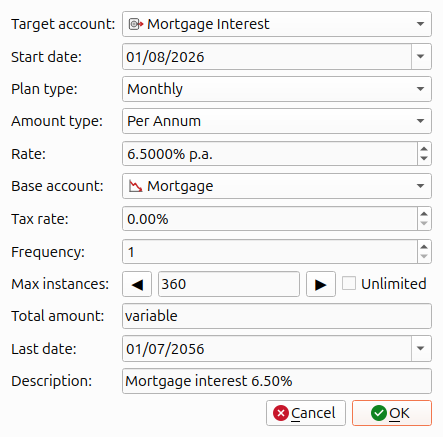
A Per-Annum plan: mortgage interest at 6.50 % p.a.
The fields, in dialog order:
Target account — the planning account this plan tracks against. Only planning accounts are offered.
Fill from transactions / Fill as / Balance after — only for a new plan on an account that already has transactions but no active plan; see Filling a new plan from transactions.
Start date — the date of the first (or only) instalment.
Plan type — Once, Weekly, or Monthly.
Amount type — Fixed or Per Annum. Per Annum is greyed out for a Once plan, and switching an existing Per-Annum plan to Once drops it back to Fixed.
Amount (Fixed only) — the dollar amount per instalment.
Rate (Per Annum only) — the annual rate, as a percentage.
Base account (Per Annum only) — the transaction account whose daily balance the rate applies to.
Tax rate (Per Annum only) — withholding tax to subtract from the computed interest. Set to 0 % when the plan represents interest you owe rather than earn.
Frequency — the N in “every N weeks/months”. Only available for weekly and monthly plan types.
Max instances / Unlimited — cap the number of instalments, or uncap it. The ◀ / ▶ buttons jog the count up and down, or type the count straight in.
Total amount — the cap × amount for Fixed, or Unlimited if uncapped, or variable for Per Annum (which depends on a balance MyBudget cannot predict).
Last date — the date of the final instalment, computed from start date, frequency and cap. Pick or type a date to set the cap; it snaps to the nearest instalment.
Description — free text shown in the plans list.
Source account (Fixed only) — If set, the plan indicates money moving between accounts rather than money coming in or being spent. See Normal vs Transfer plans.
The dialog only shows the fields that apply, so it changes shape as you pick a plan type and an amount type: Amount and Source account belong to Fixed plans, Rate, Base account and Tax rate to Per-Annum ones, and Frequency and Unlimited are disabled for a Once plan.
For limited fixed plans, the Amount, the number of instalments and the Total amount are related: amount × instalments = total. Editing any two of these fields will compute the third while adjusting as needed to account for the fact that the number of instalments must be a whole number.
Filling a new plan from transactions
When you balance a transaction against a new planning account, the plan it needs can be read off what is already there. Add plan from the Accounts tab on a planning account that has transactions but no active plan ticks Fill from transactions. The start date is then the date of the first transaction — or the first one after an earlier plan ran out — and the amount is worked out from them. What is left for you is the plan type and frequency, and even those start out at a guess: transactions at regular intervals suggest that schedule (weekly, fortnightly, monthly, quarterly…); irregular ones suggest monthly; a single one suggests Once.
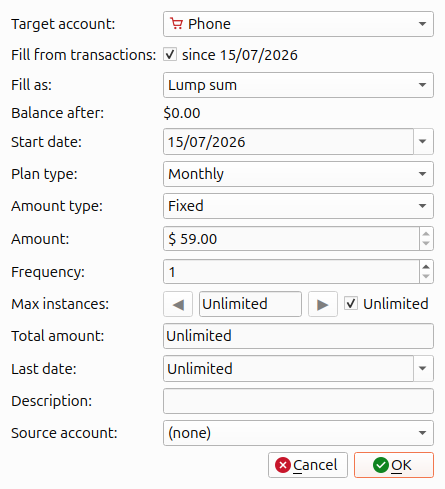
Add plan on Phone, filled from three monthly bills: a lump sum of $59.00 a month, leaving a balance of $0.00.
Fill as picks how the amount is worked out, and starts at the kind the transactions look like — about one per period is a lump sum:
Spread over the period — money spent a bit at a time. The amount is the average spent per period, which leaves the balance where it would be had the money gone out evenly: each instalment pays for the period after it, running down from the amount to zero. It needs a full period of transactions; with less, it takes what was spent per instalment so far and says so.
Lump sum — one transaction per instalment. The balance is split evenly over the instalments already due, bringing it to zero.
Balance after shows what the account’s balance will be once the plan is saved. While the box is ticked, Start date and Amount are filled in and read-only, and follow any change to the plan type, frequency or cap; untick it to edit them yourself. Later, Update plan (see Updating a plan) keeps the plan in line with what actually gets spent.
Splitting a plan
Real life changes. Your rent goes up. Your mortgage rate is reset. You decide to start saving an extra $200 a month. These are all cases where you need to adjust your plans to changing real-world conditions. In these cases you usually do not want to affect the past. Your plans were working just fine until now, but you need to plan for the increase in Rent going forward.
For cases like this, the right tool is Splitting: it ends the existing plan as of an effective date and starts a fresh plan from that date with new parameters. Past instalments stay attached to the old plan; future ones are governed by the new one. Right-click a plan and choose Split to open the Split Plan dialog, which lets you:
Pick the effective date — the ◀ / ▶ buttons step it one instalment at a time, or pick a date from its calendar and it snaps to the nearest instalment boundary. The calendar only offers dates the split can actually land on, since both halves have to keep at least one instalment.
Adjust the plan parameters to reflect the changed intentions.
When you confirm, the original plan’s Max instances is set to the count just before the effective date, and the new plan is created starting on it.
It is only possible to split plans on instalment boundaries. However, once split, you can edit the new plan freely without affecting the old which allows you to change e.g. its start date, frequency etc.
Splitting leaves the past alone, so it assumes the plan was right until now. If it was not — the account’s balance has drifted — correct it with Update plan (see Updating a plan) instead, which can also split the plan at its latest instalment once the correction is made.