
History
MyBudget remembers every change you make. The History tab is where you browse, compare against, and (if necessary) undo those changes. You may also discard history that is no longer needed or collapse (fold) sections with detailed individual changes into a single larger change.
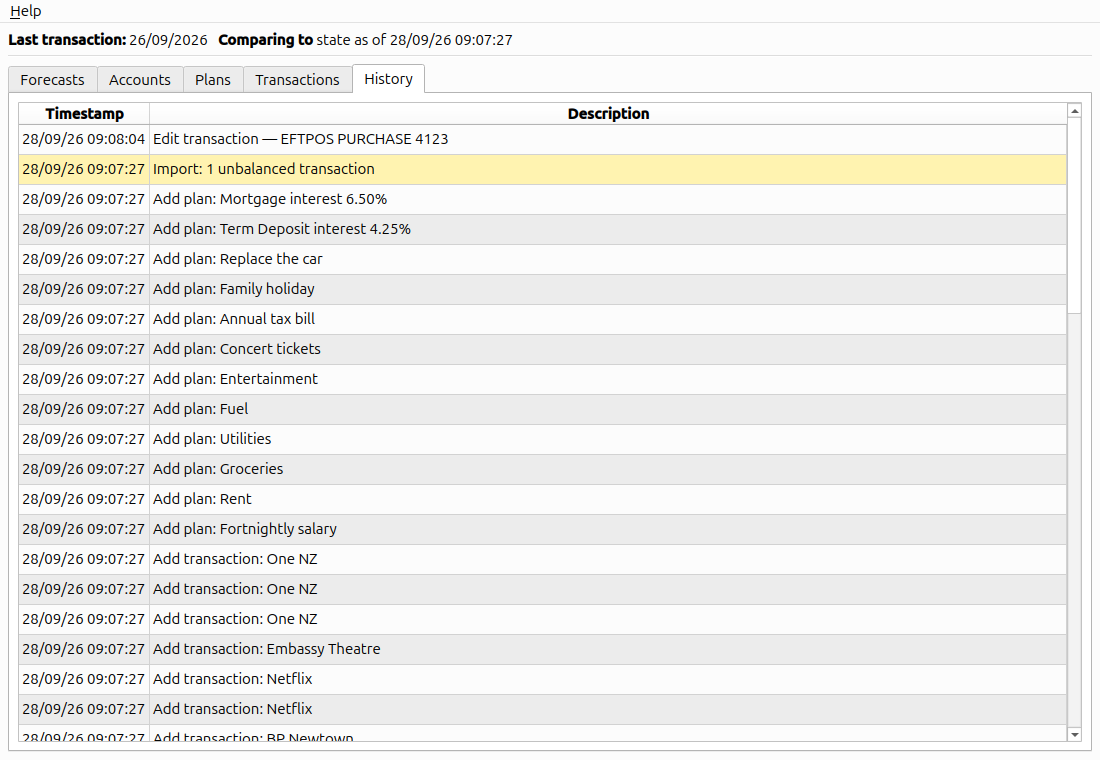
Every change shows up as a row, newest first.
How history is recorded
Every time you make a change — adding a transaction, editing a plan, importing a CSV — MyBudget captures the exact set of database rows that were inserted, updated, or deleted, and saves that changeset together with a timestamp and a short description of what you did. This happens automatically; there is no Save button to forget about and no undo stack that resets when you close the file. Open a budget you last touched a year ago and every change you have made is still in the history.
The bottom row in the table — Initial state — is special: it represents not a change, but the oldest state recorded. Every row above that contains the delta needed to advance from one state to the next.
History mode
The top row is always the current state, the budget as it is now. Right-clicking any other row offers Show this state. MyBudget then reconstructs a read-only copy of the budget as it was at that point and displays it in history mode: every tab is read-only, a banner at the top of the window shows which historical state is being viewed, and all edit/add/delete actions are disabled.
Showing a historic state is non-destructive — you can flick between states freely to compare. Use Show this state on the most-recent (top) row or click the “Exit history mode” button in the history mode banner at the top to leave history mode and return to the live editable view.
The baseline (Compare to)
The Forecasts and Accounts tabs both compare the current numbers against a saved baseline state: the Accounts tab in a Change column, the Forecasts chart by drawing each of its lines a second time, dashed, with the differences in its hover panel and its summary box. By default the baseline is the state at application start, so Change typically reads zero immediately after launch — and each dashed line sits on top of its solid one — and grows as you make changes.
Right-click any row and pick Compare to to make that state the baseline. The header at the top of the window updates to show the chosen point in time (“Comparing to state as of …”), and every Change / Previously-on column on the Forecasts and Accounts tabs — and the chart’s dashed line — recomputes relative to it.
This is the right tool for “how have things shifted since I last sat down with my budget?” — set the baseline to your last review session and the Change columns directly answer the question.